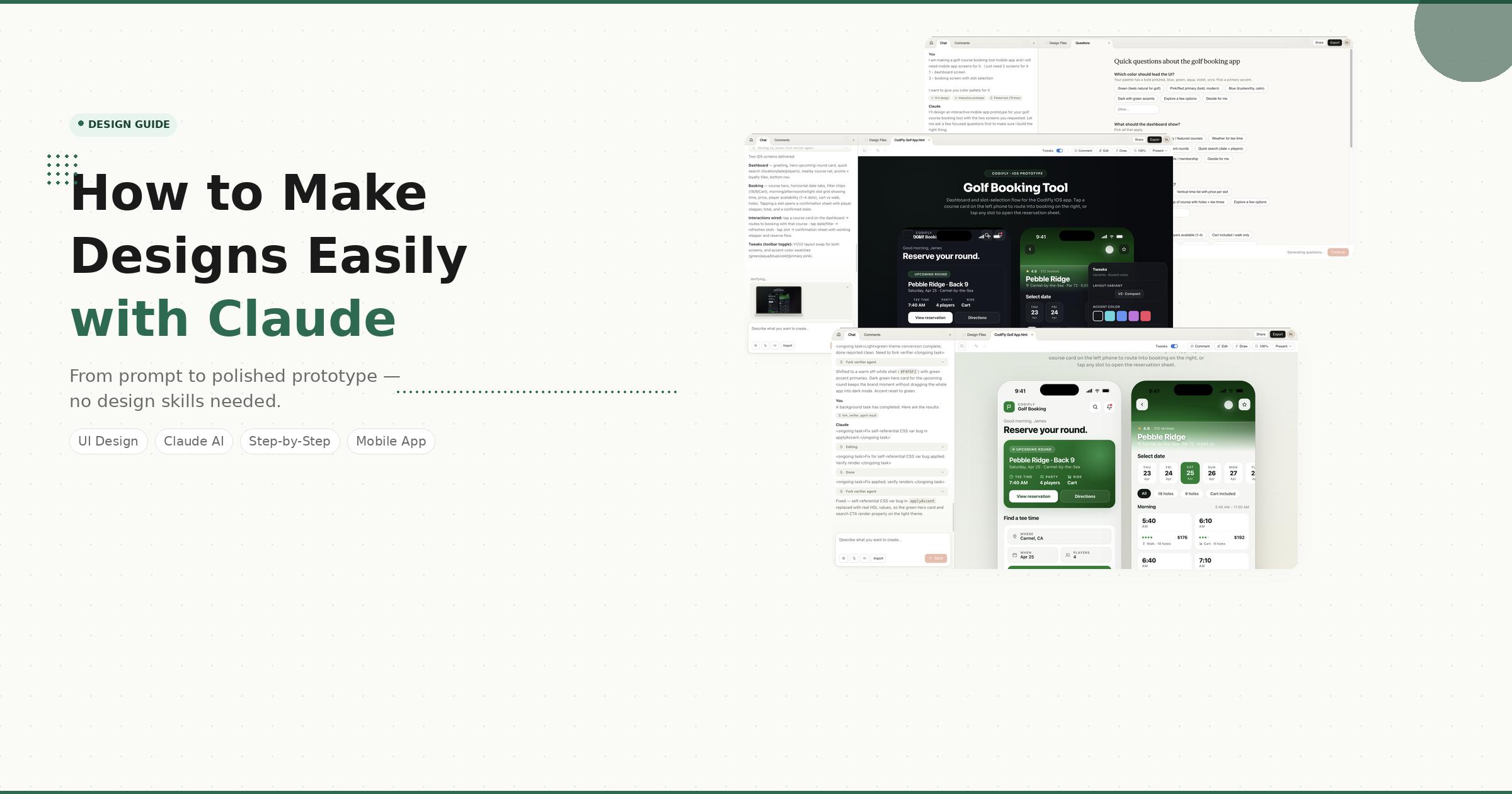
How to make designs easily with Claude
You don't need to be a designer to create good UI anymore. With the right prompts, Claude can generate clean app designs in minutes. Here's exactly how — using a real golf booking app as our example.
Design used to be one of the biggest blockers for founders and developers. You either hire a designer, learn tools like Figma, or compromise with average-looking screens.
But now, tools like Claude Design are changing that. With the right prompts, you can generate clean UI designs, layouts, and interactive prototypes in minutes — even if you're non-technical.
In this guide, we'll walk through building a complete golf course booking app from scratch using Claude Design, with real screenshots from every step.
Go to Claude Design
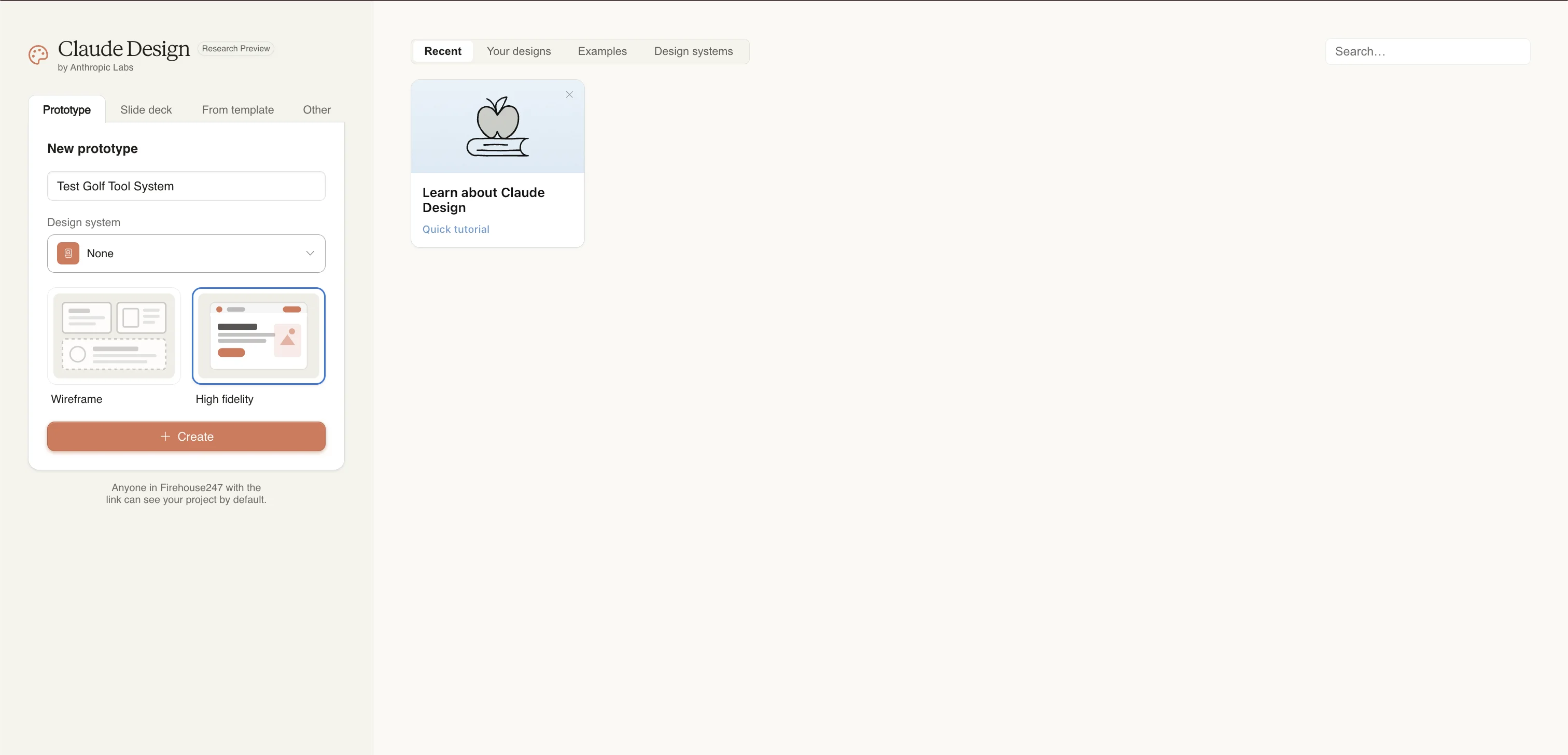
Start by visiting https://claude.ai/design. Log in or sign up — you'll land on a clean dashboard where you can see your recent projects, templates, and design systems.
The interface has tabs for Prototype, Slide deck, From template, and Other — giving you multiple entry points depending on what you're building.
Create a new project
Claude Design lets you organise work into projects. Give your project a descriptive name — we called ours "Test Golf Tool System" and selected High fidelity mode to get polished, production-style outputs.
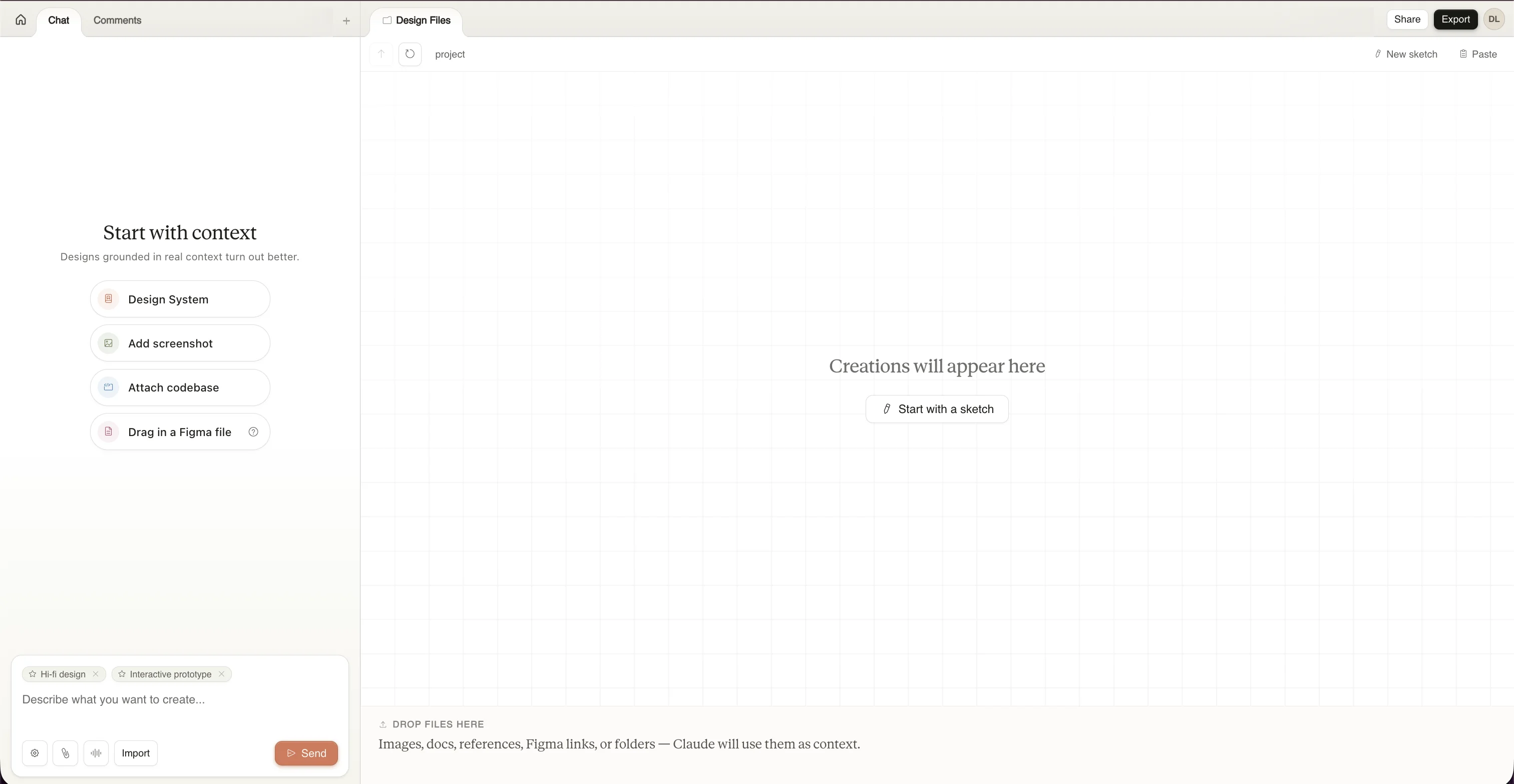
Once inside the project workspace, you'll see the Chat panel on the left and the Design Files canvas on the right. You can also add context upfront — a design system, screenshots, codebase, or even a Figma file.
Write your first prompt
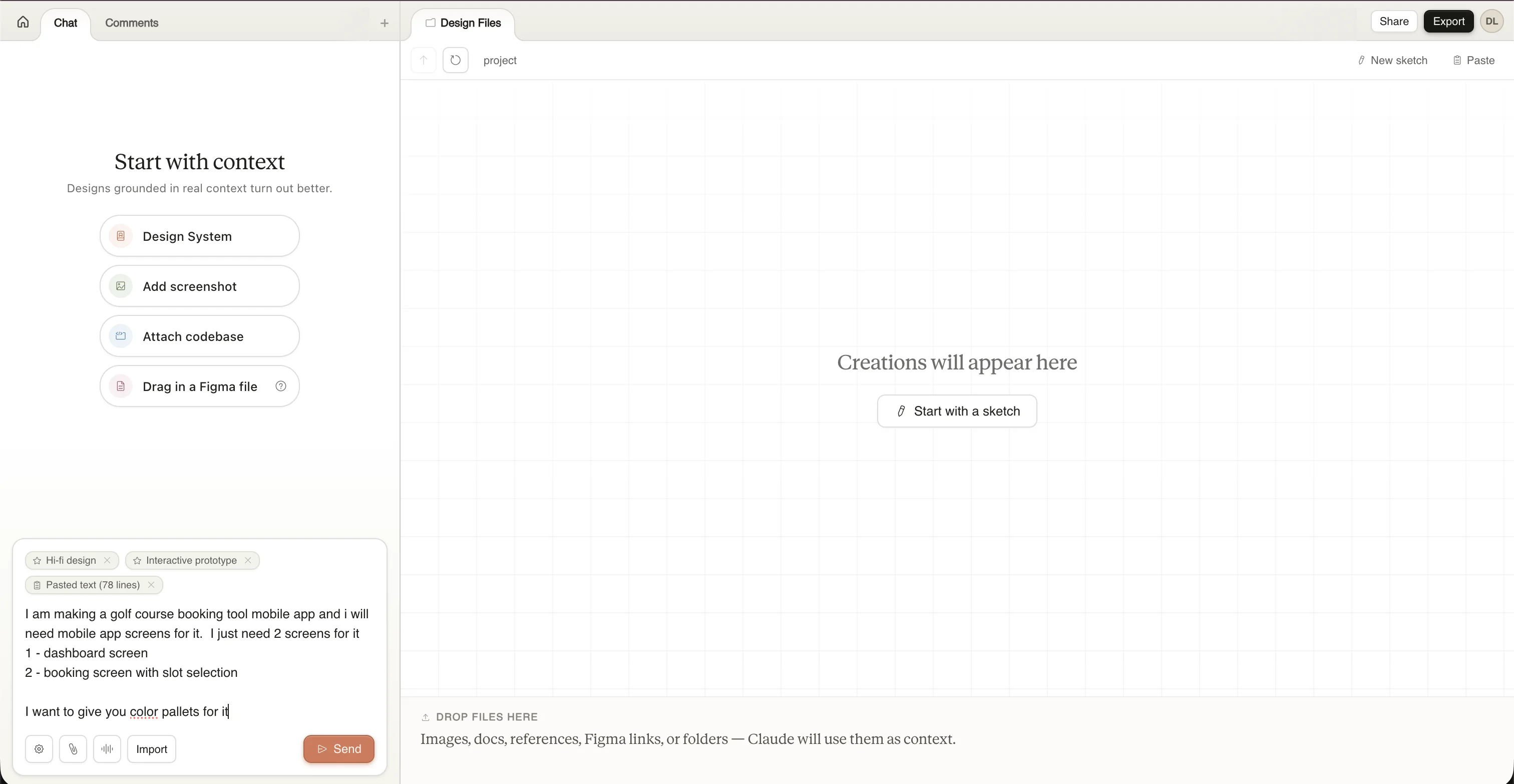
This is where the magic starts. Claude works best when your prompt is clear, specific, and context-driven.
For our golf app, we typed:
Notice how we specified exactly what we wanted: the number of screens, the screen types, and that we had colour preferences. The more precise your prompt, the better your result.
Answer Claude's follow-up questions
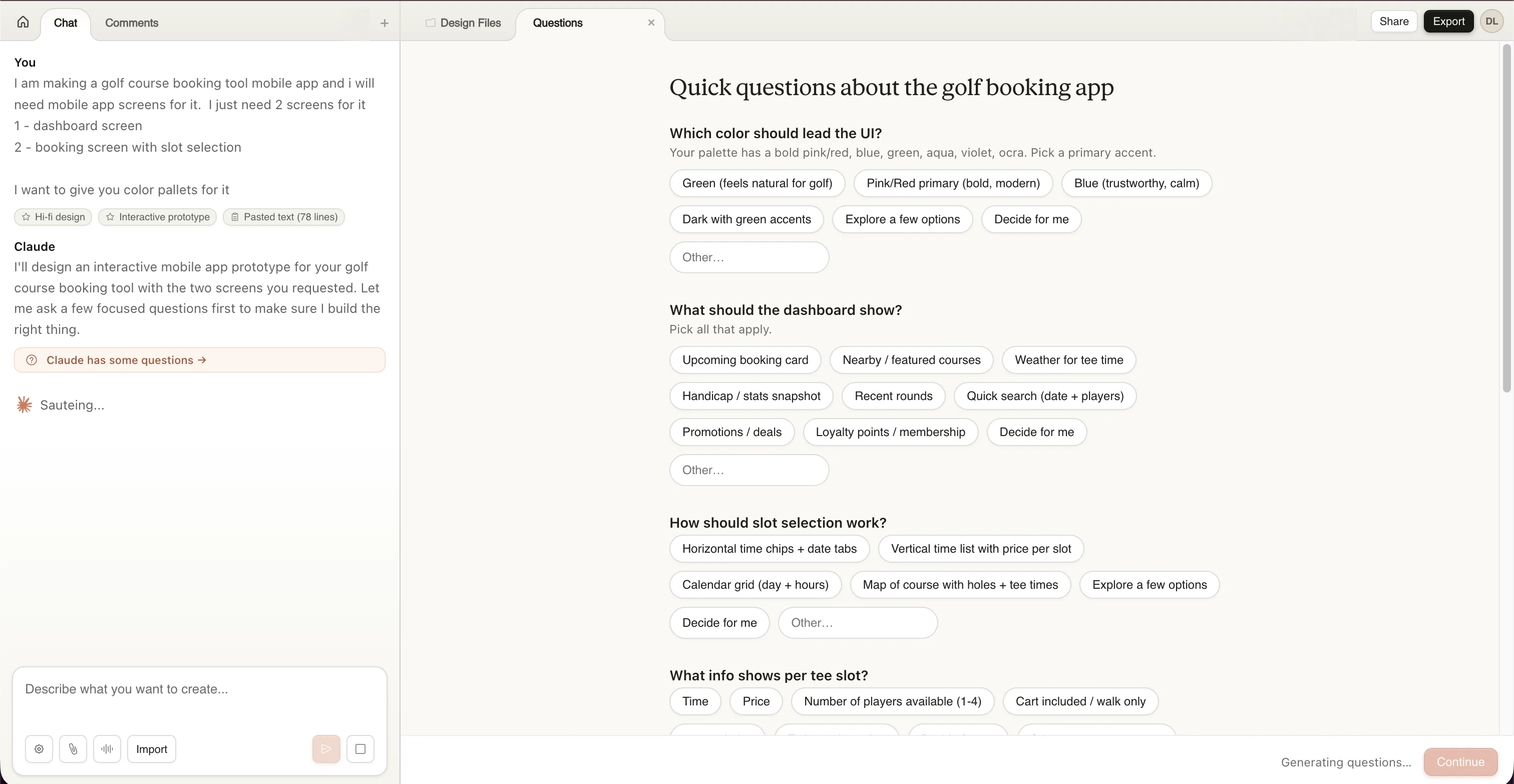
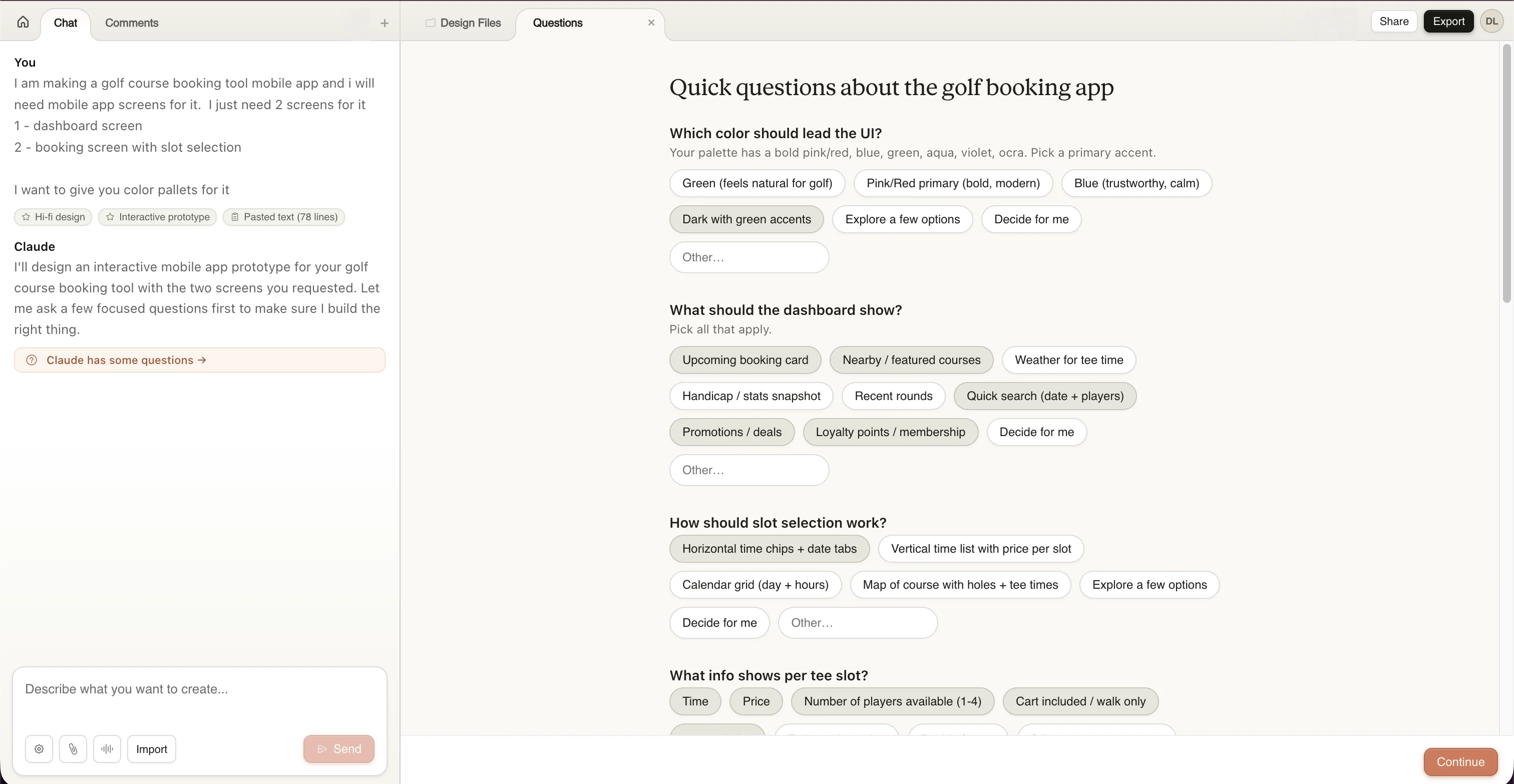
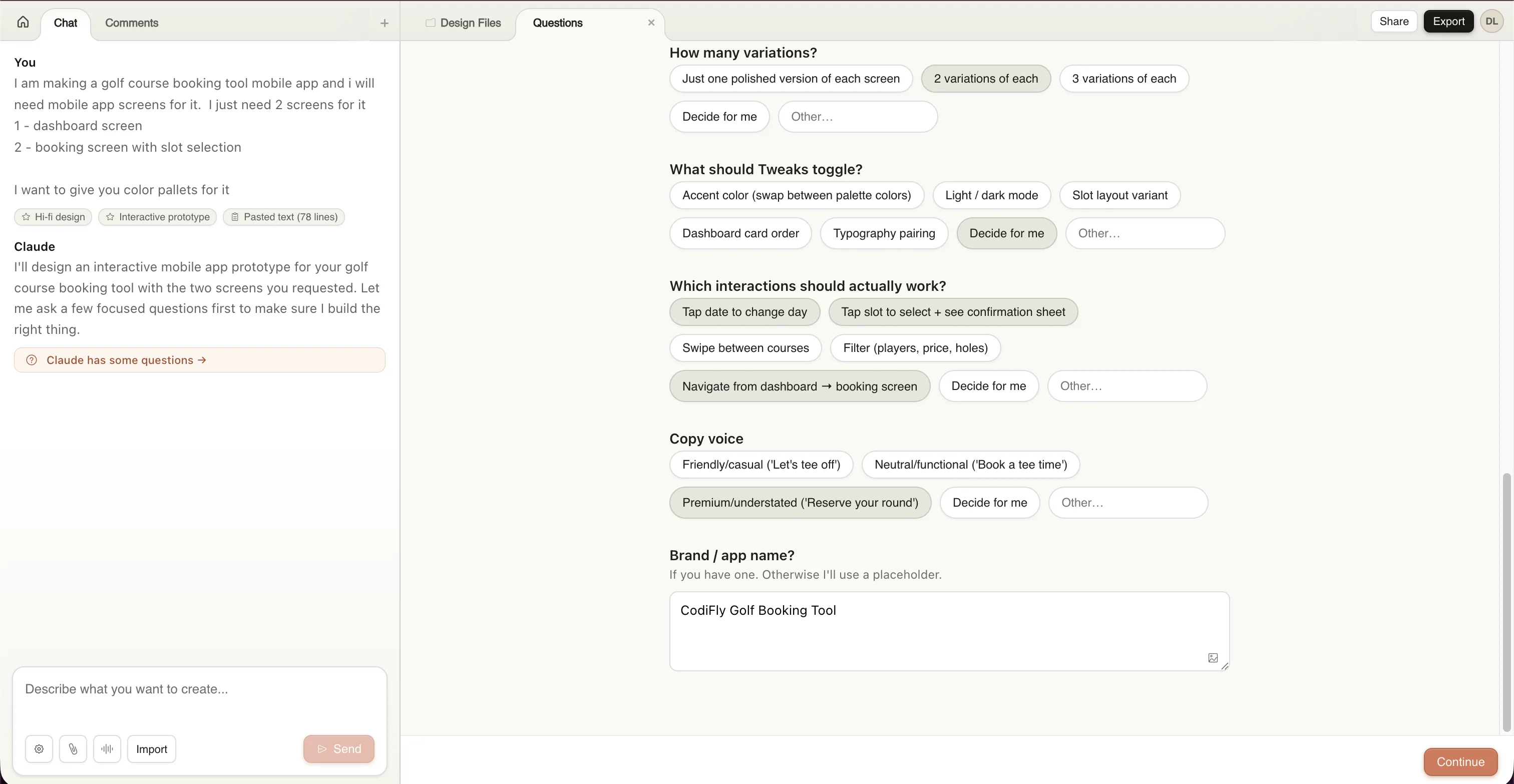
After your first prompt, Claude doesn't just start building — it asks smart, targeted questions to understand your intent. Think of it like collaborating with a real designer who wants to get the brief right before starting.
For our golf app, Claude generated a full questionnaire covering colour preference, dashboard content, slot selection UX, tee slot info display, number of variations, interactive elements, copy voice, and even the brand name.
Watch Claude build the design
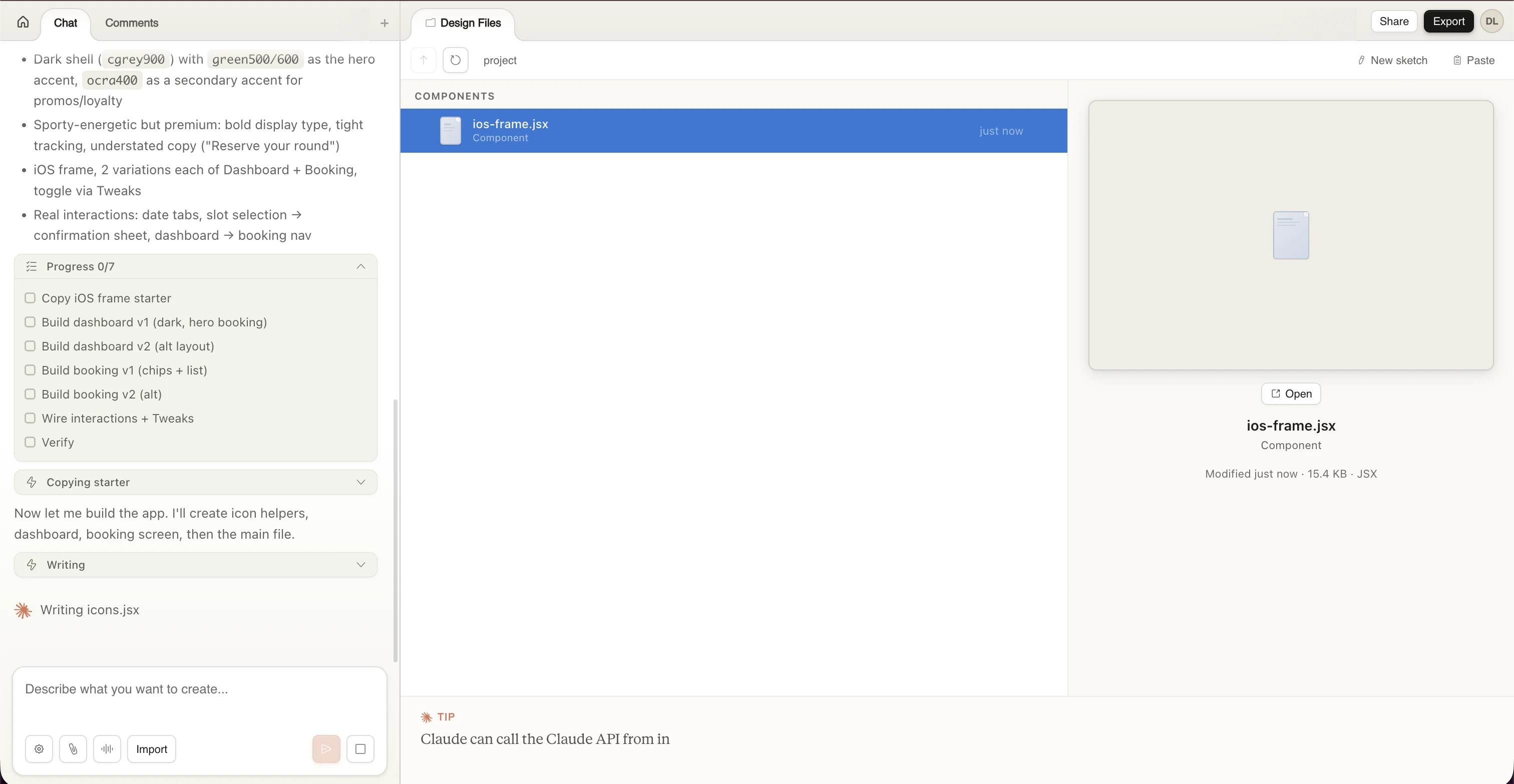
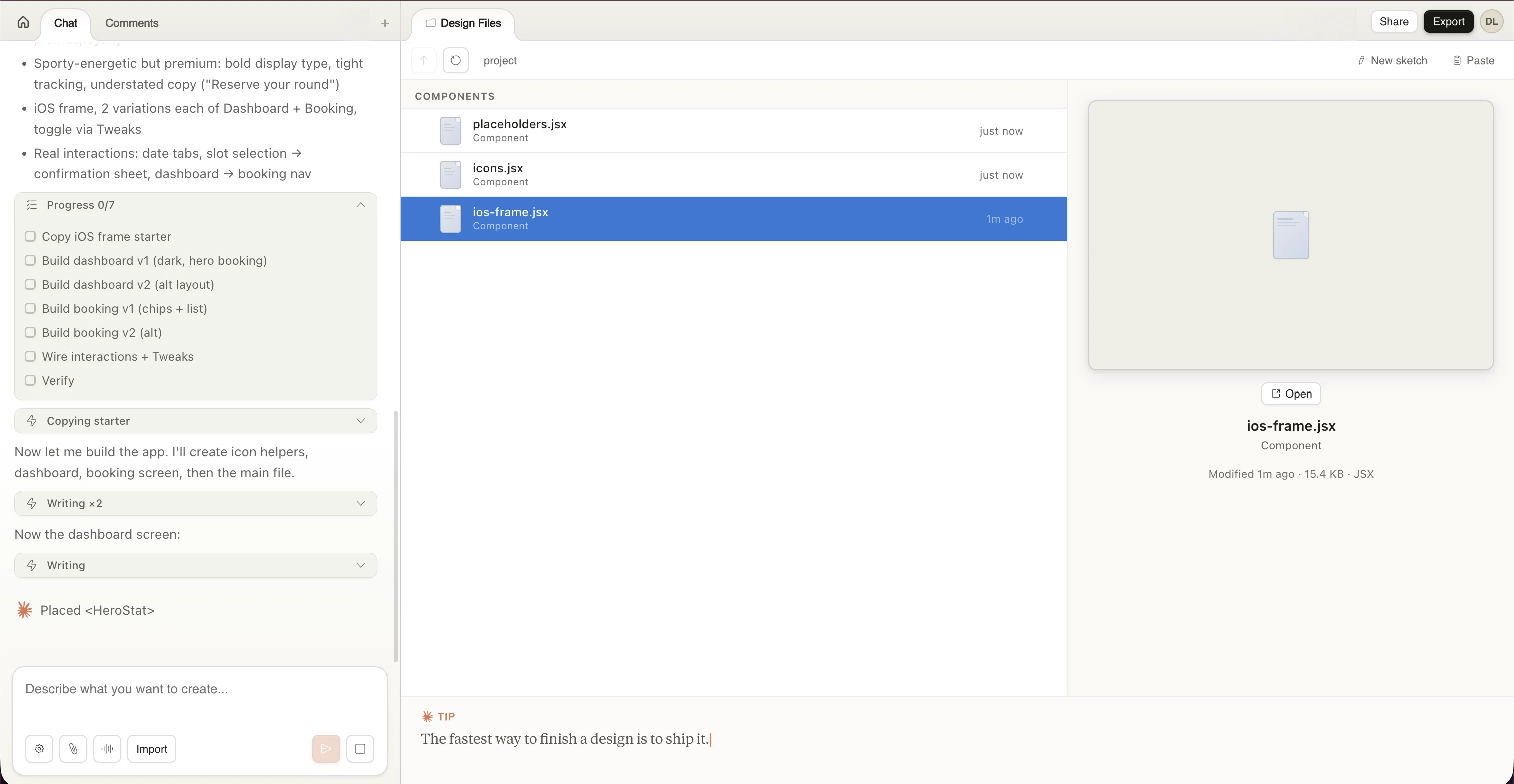
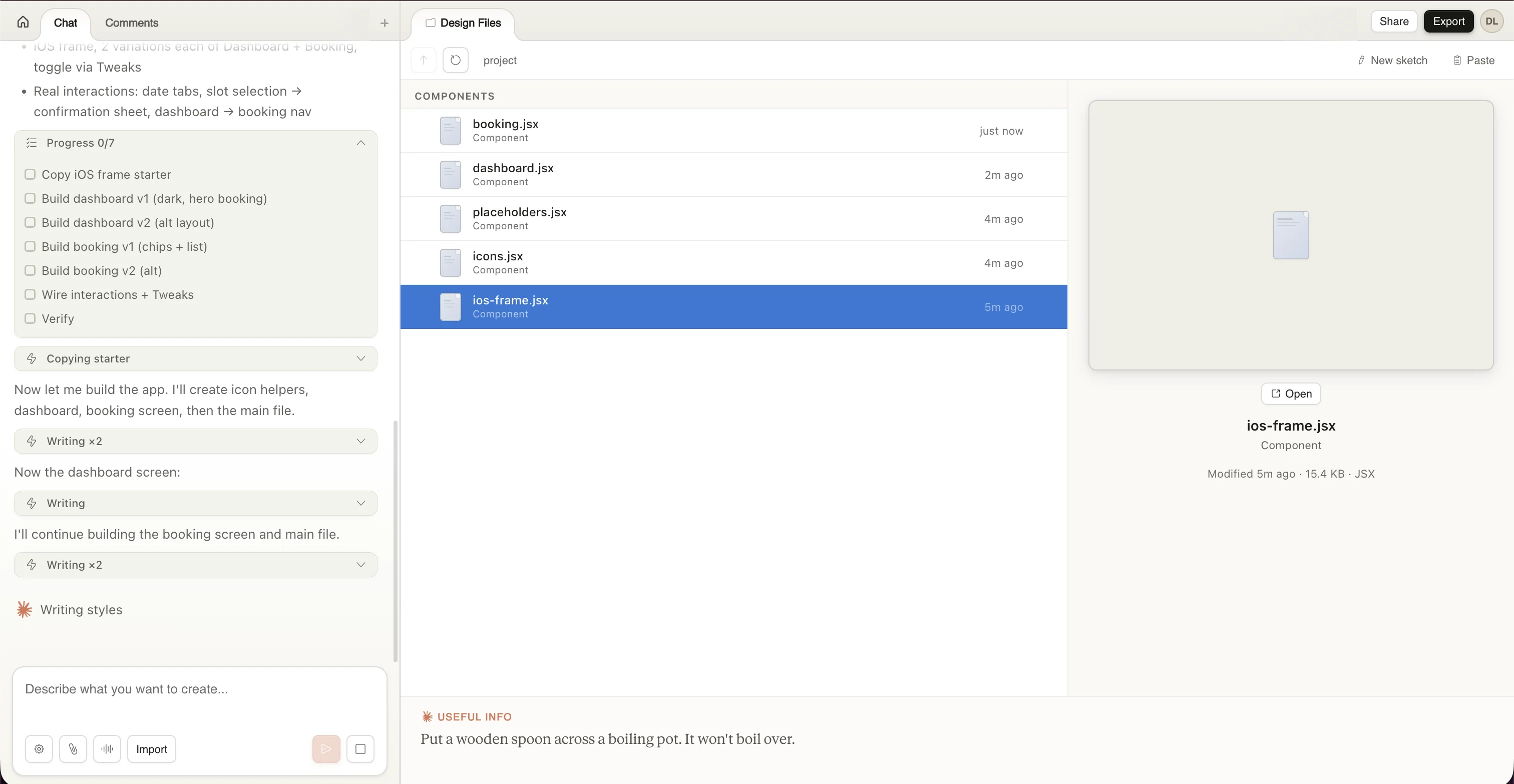
Once you hit Continue, Claude gets to work. It shows a live progress tracker with clear steps — copying the iOS frame starter, building dashboard variations, building booking variations, wiring interactions, and verifying the output.
You'll see component files appearing in the Design Files panel in real-time: ios-frame.jsx,
icons.jsx, placeholders.jsx, dashboard.jsx, booking.jsx, and
more.
View the generated design
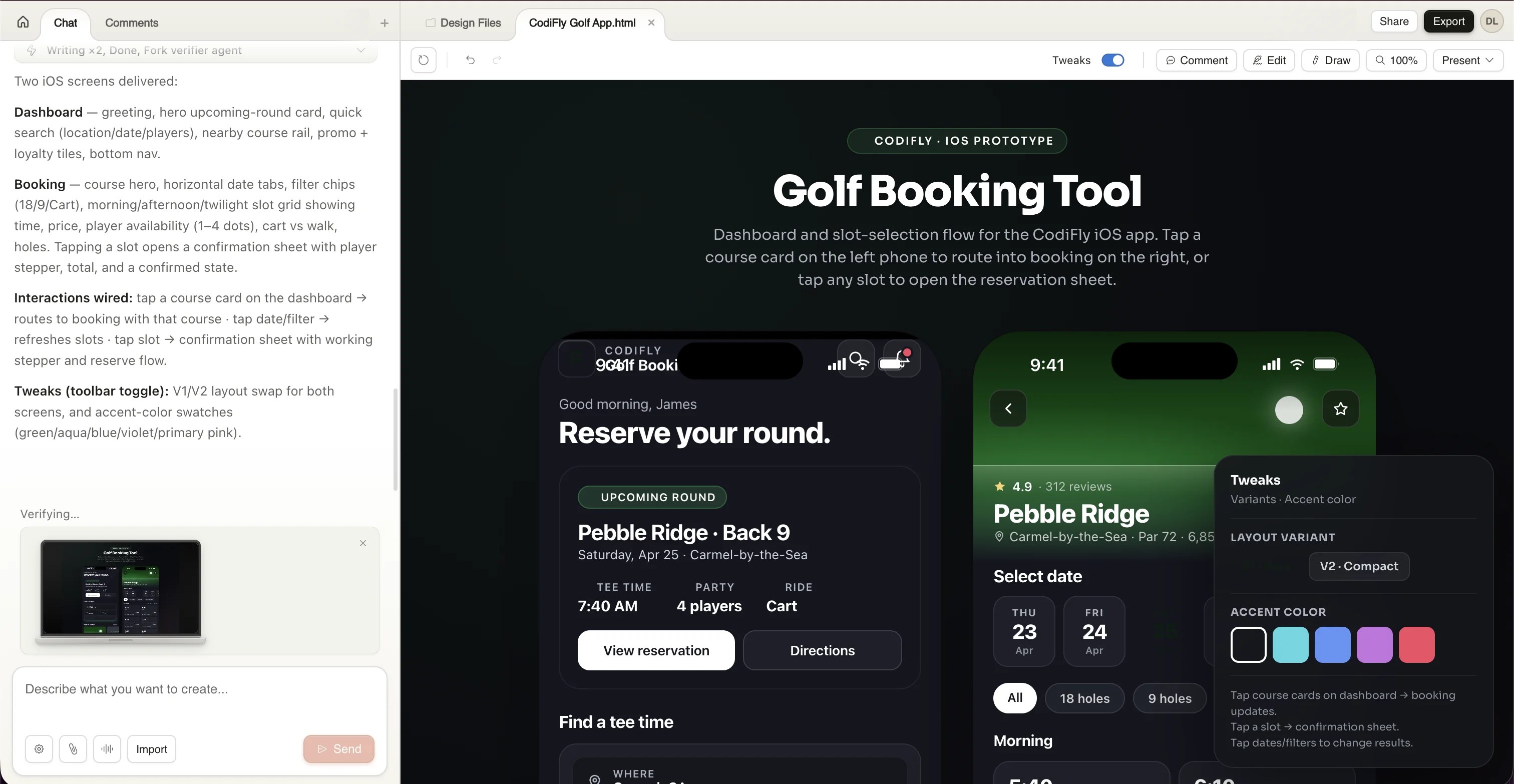
Once Claude finishes, the full interactive prototype appears on the design canvas. For our golf app, it delivered two complete iOS screens — a dashboard with upcoming round details, quick search, and course discovery, plus a booking screen with date selection, hole filters, and time slot pricing.
The design even includes a Tweaks panel on the right where you can toggle between layout variants and swap accent colours (green, aqua, blue, violet, pink) in real-time.
Ask for changes — iteration is key
The real magic of Claude Design is iteration. You don't need to start over when something isn't quite right — just describe what you want changed.
For our golf app, the initial dark theme felt too heavy, so we simply typed:
Claude immediately understood the intent — it shifted to a warm off-white shell with green accent primaries, keeping the dark green hero card for brand impact without making the entire app dark mode. It even fixed a CSS bug it found during the process.
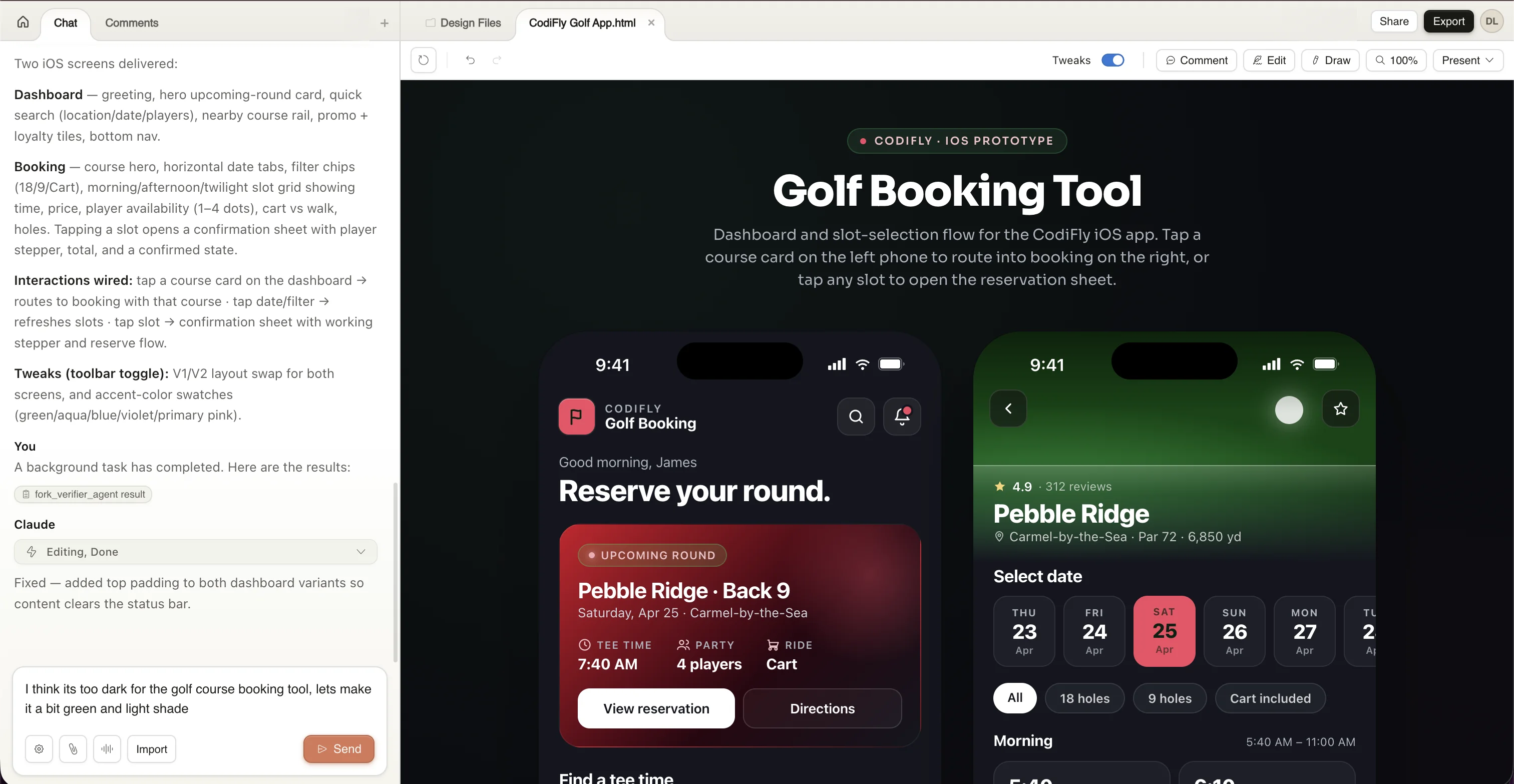
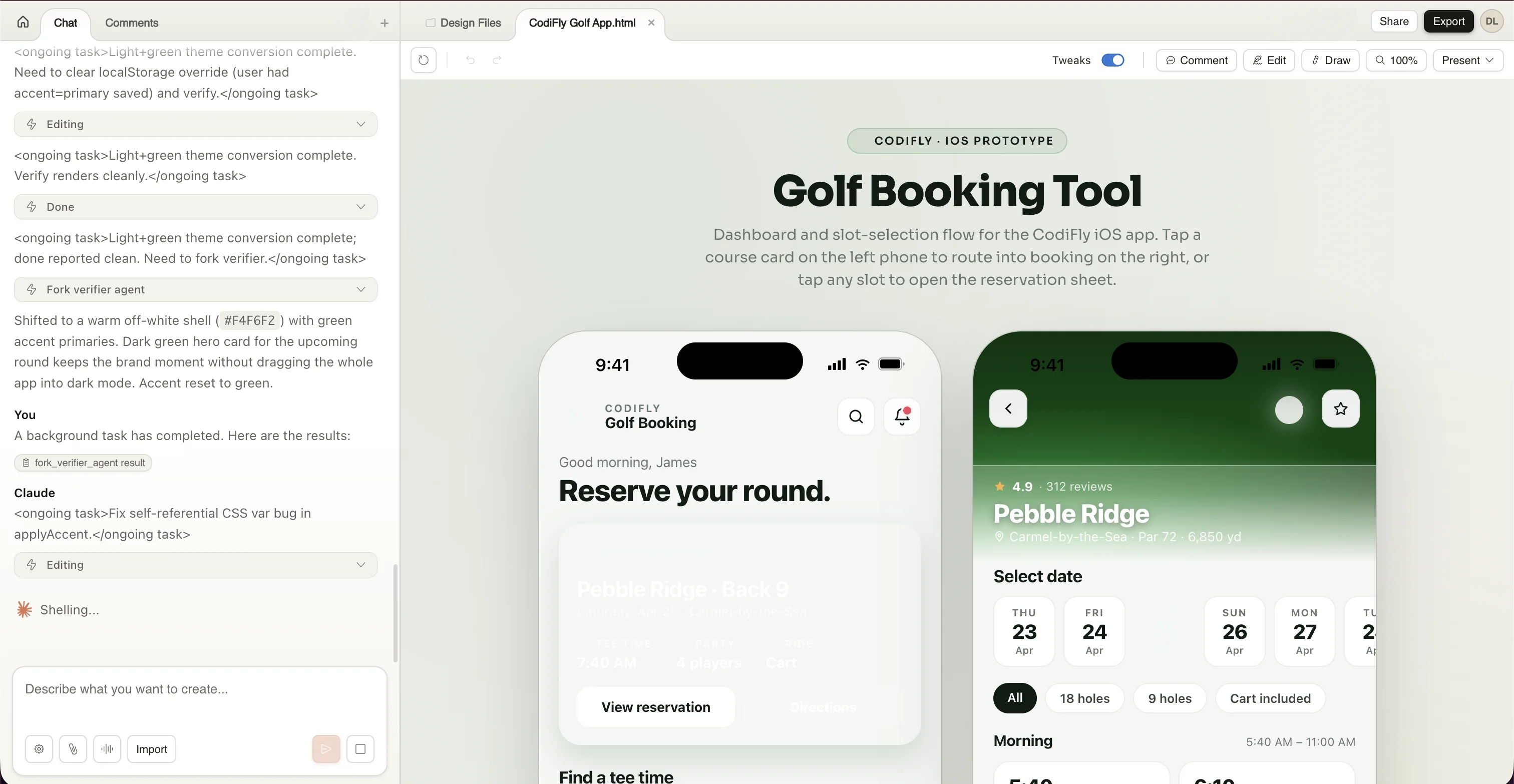
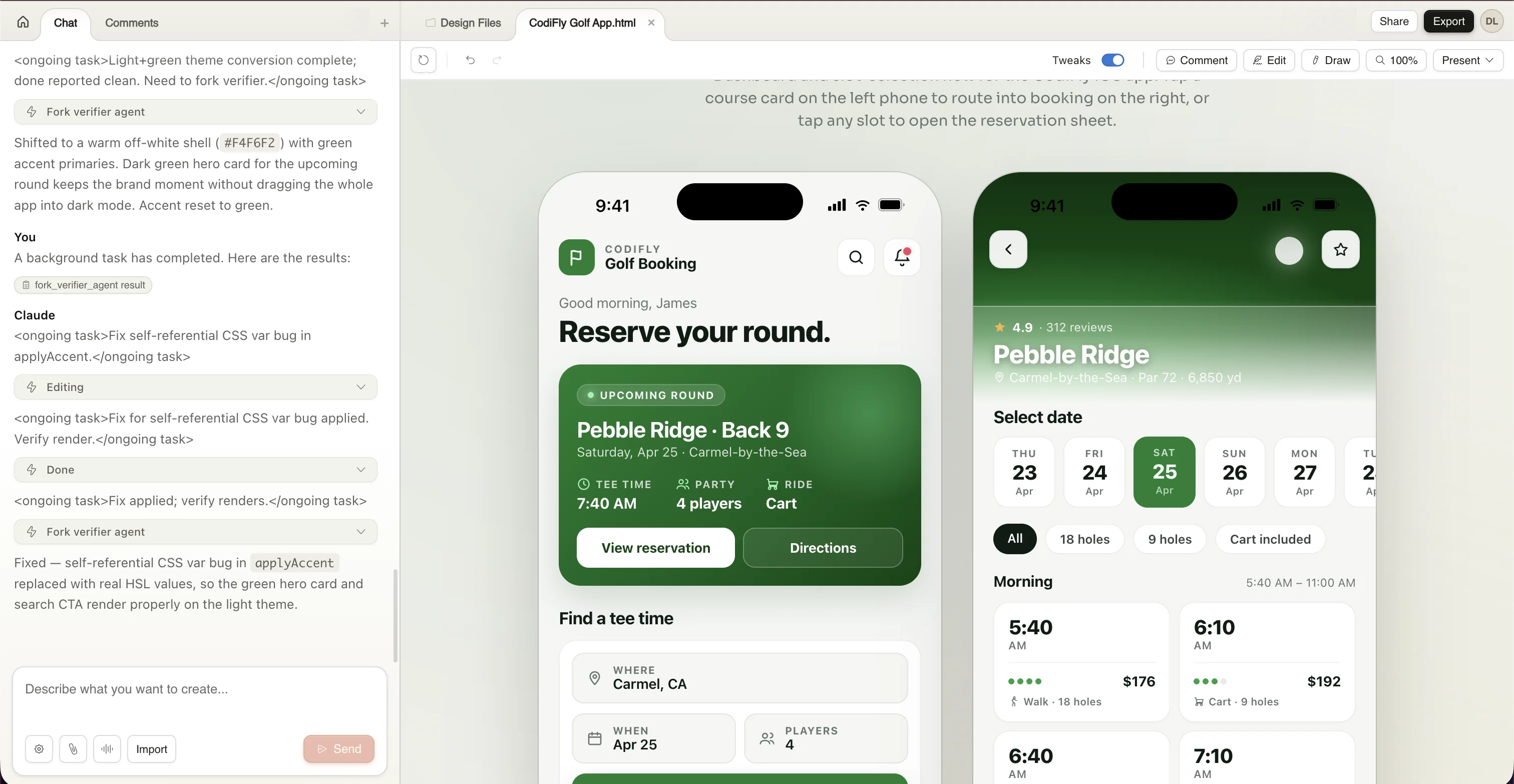
The final design is clean, professional, and ready to share with developers or convert into Figma. And all of this happened in a single conversation.
Pro tips for getting the best designs
Here's an example of how specificity changes outcomes:
"Design a golf app"
"Design a golf course booking mobile app with a dashboard showing upcoming rounds and a booking screen with tee time slot selection. Use dark green with light accents."
Limitations to keep in mind
Claude Design is powerful — but it's not a full replacement for a designer just yet. Here's what to expect:
- It may not always produce pixel-perfect UI on the first attempt — you'll likely need a round or two of iteration
- Complex UX flows with many conditional states may need manual refinement in Figma or code
- You may still want a professional designer for brand identity, illustration, and final polish
"Start with ideas. Refine with AI. Build faster."
Creating designs is no longer a bottleneck. With tools like Claude Design, you can go from idea to interactive prototype in minutes, experiment freely, and save significant time and cost.
Whether you're a founder, developer, or just exploring an idea — you can now design without being a designer.
Ready to design with Claude?
Go from idea to interactive prototype in minutes.
Try Claude Design →Written by CodiFly Software